
1 Read the dashboard cards
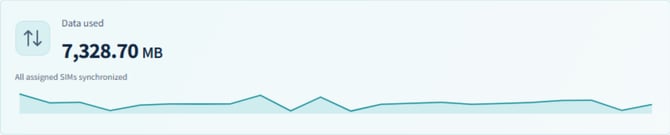
Data used shows consumption for the selected period:
Subscriptions shows the latest known subscription status:
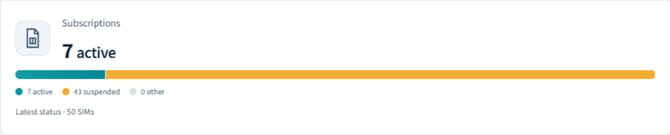
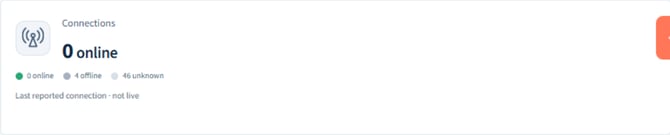
| Active / Suspended | Subscription status. This is different from online or offline. |
|---|---|
| Online / Offline / Unknown | The last known connection status; Unknown means the status is not known. |
| Data used | Usage within the selected view and period. |
An active subscription does not prove that the box can reach the cloud. Also check the installation itself.
2 Monitor data usage
Use Daily data usage to review the daily trend. Select View daily values to inspect daily figures. Check whether a peak matches the expected use of the installation.
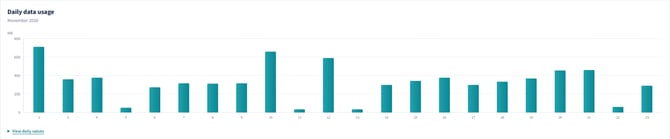
Daily data usage for the selected month.
Largest consumers shows which SIM cards use the most data. For unusual consumption, check the relevant card, its box assignment, live video use and use of the backup connection.
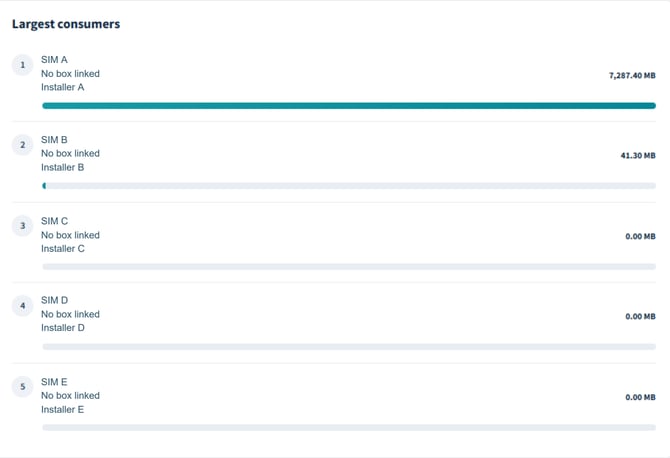
The largest consumers with neutral example labels.
For a shared pool, review both the total and individual outliers. Check which cards belong to the same pool and which plan terms apply. Use available alerts or limits only after checking their impact on connectivity.
3 Find and assign a SIM card
Go to SIM cards. Search by ICCID, name or box serial and use All statuses to filter the list when needed. ICCID is the SIM card identification number.

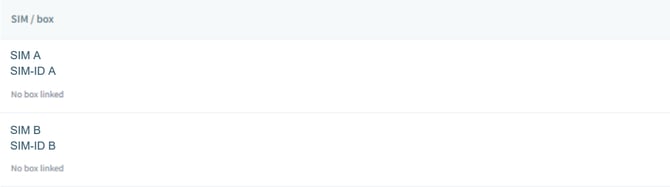
Also review Status, Connection, Plan / operator, Usage and Updated (UTC). Then open the relevant card.
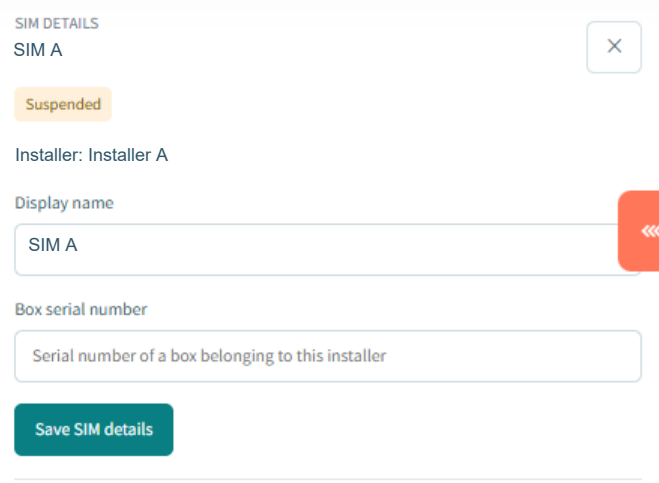 SIM details with Display name and Box serial number.
- Enter a clear name in Display name.
- Enter the serial number of the correct box belonging to this installer in Box serial number.
- Click Save SIM details and review the saved information.
A box assignment in the portal does not confirm a hardware ID or IMEI lock. Have any required device lock checked separately.
4 Manage the subscription
Use Connectivity actions to manage activation, temporary suspension and cancellation. Read the confirmation for the selected action before proceeding.
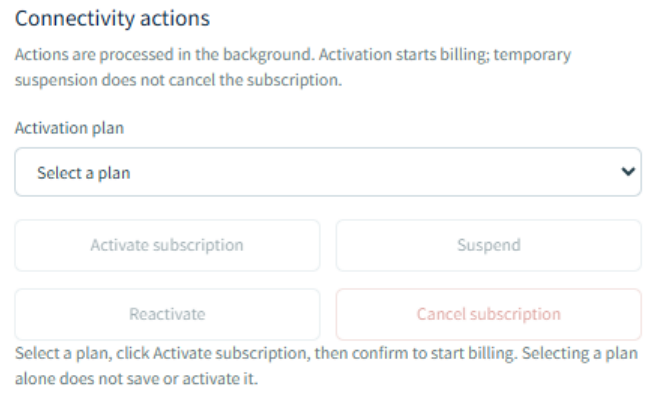 Separate actions for activation, suspension, reactivation and cancellation.
- Verify the correct SIM card and select a plan under Activation plan.
- Click Activate subscription.
- Read and confirm the request. Activation starts billing.
- Check processing and then review the subscription status.
Selecting a plan alone does not save it or activate the subscription. Save SIM details is used for the card details.
| Suspend | Temporarily interrupt connectivity. This does not cancel the subscription. |
|---|---|
| Reactivate | Reactivate a suspended card, then test connectivity. |
| Cancel subscription | Request cancellation of the subscription. Review the terms and confirmation. |
5 Check refresh and processing
Data is synchronised with the provider. Check the timestamp under Updated (UTC) or last synchronized. Refreshing the page can display the same cached provider data.
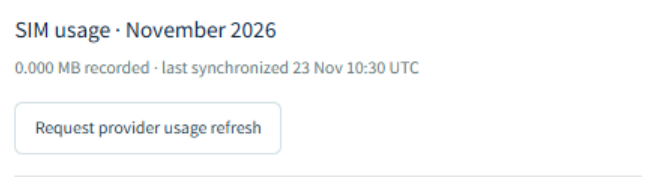 Request a new usage refresh from the provider.
Use Request provider usage refresh when you need a new usage request. Processing takes place in the background; do not expect all values to change immediately.
Follow up requestsCheck Recent activity and use View all requests for the request overview. Review processing before repeating the same action.
 Open the request overview with View all requests.
- Verify the correct card and the request result.
- Check the new subscription status and synchronisation timestamp.
- After activation or reactivation, test mobile connectivity and whether the box reaches the cloud.
- When suspending or cancelling, check the impact on the primary or backup connection.
Use additional functions for network selection, alerts, limits or device locking only when available in your SIM environment. A speed restriction or automatic stop can affect the installation's reachability.
6 Configure the local connection
Insert the SIM according to the installation instructions and check the LTE antenna. Keep the card holder with the PIN and PUK details in a safe place. PIN protection is disabled by default on the supplied Secury360 SIM.
Set the APN on the S360 box LTE- Connect your computer locally to the S360 box LTE.
- Open http://SERIALNUMBER or http://IPADDRESS, replacing the placeholder with the box serial number or local IP address.
- Without a local network, connect directly to the camera port. Its default address is http://192.168.3.240.
- Sign in to the local interface and open Modem settings.
- Enter data641003 as the APN and save.
- Test connectivity. For backup use, also test switchover under controlled conditions.
Manage the subscription in the portal; configure the APN locally on the box.
Troubleshooting| Card missing | Check ICCID, filters, permissions and installer assignment. |
|---|---|
| Status appears outdated | Check the synchronisation timestamp and request processing. |
| No mobile connection | Check subscription, APN, card insertion, antenna, coverage and any limits or device lock. |
| Active but no cloud connection | Test the installation itself. Subscription status and the last reported connection are not a live end-to-end test. |
| Unexpectedly high usage | Review daily values, Largest consumers, live video and backup use. |